Controller-Compatible Indie iPhone Games: Play With MFi Gamepads

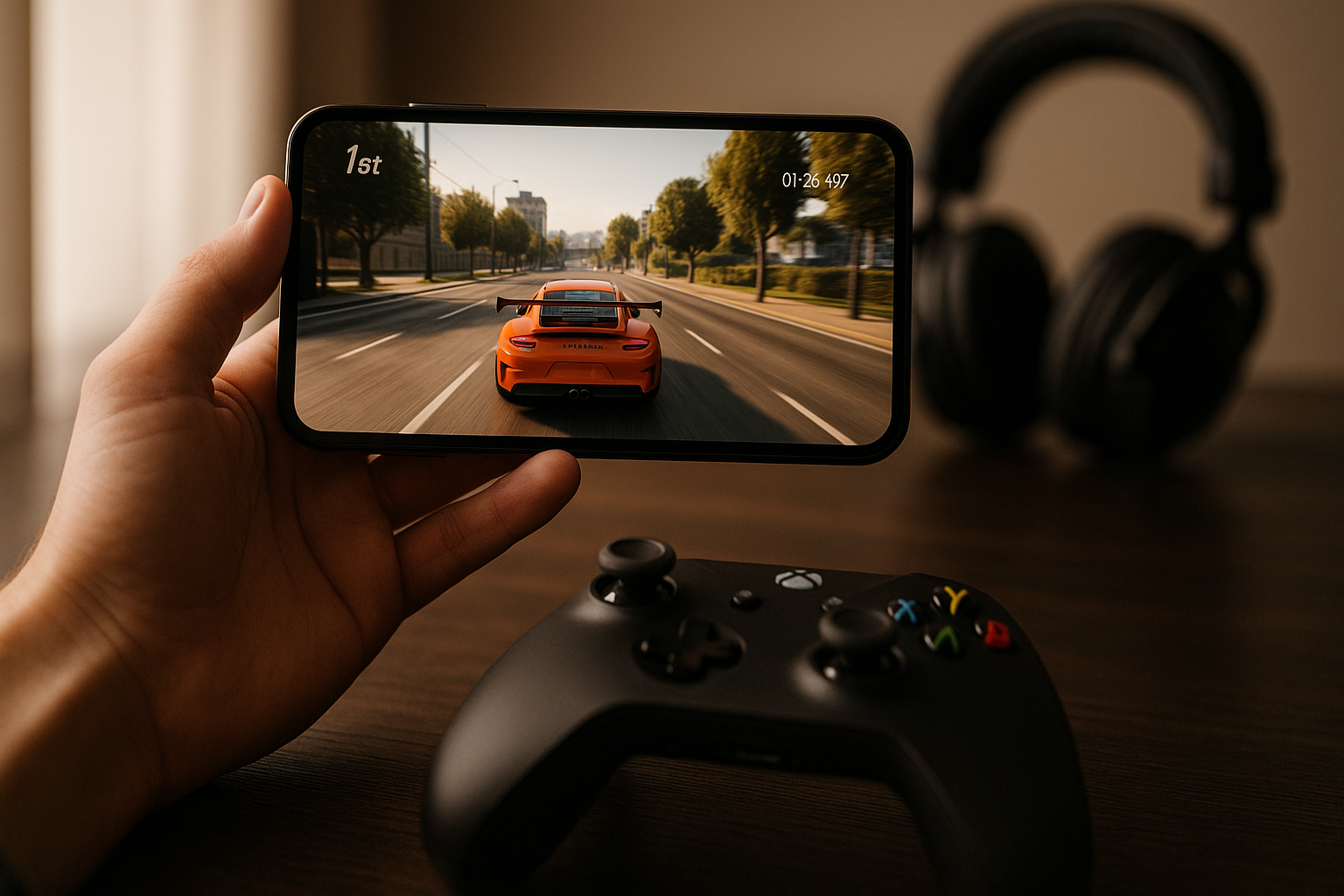
Photo by Rohit Choudhari on Unsplash
Controller-Compatible Indie iPhone Games: Play With MFi Gamepads
Plugging an MFi controller into your iPhone transforms how you play. Touchscreen controls work fine for many games, but the moment you hold a proper gamepad—with analog sticks, tactile buttons, and shoulder triggers—you realize what your phone’s been missing. This guide recommends five controller-compatible indie games, explains how to verify controller support before buying, and shows how to configure your setup for precision gaming.
Why Controller Support Matters for Indie Games
MFi controller support isn’t just about comfort—though holding a proper gamepad for three hours beats jabbing glass. It’s about how developers design around input fidelity. A game built with controllers in mind can use dual analog sticks for nuanced movement and camera control, pressure-sensitive triggers for acceleration or aiming, and satisfying button feedback that touchscreen taps can’t replicate.
Indie developers who prioritize controller support typically do so because they care about mechanical depth. They’re the ones building games with physics that reward patient positioning, timing windows that demand precision, and progression systems that don’t rely on grinding or timers. A developer shipping a premium indie title with full controller support is signaling: This is a complete game, not a free-to-play vehicle.
The constraint also filters out the noise. On the App Store’s indie section, you’ll find thousands of titles. Narrowing to controller-compatible games cuts through clutter—you’re left with developers serious enough to implement proper input handling.
What “Controller Support” Actually Means on iOS
Not all controller implementations are equal. MFi (Made for iPhone) is the standard Apple set, covering everything from the SteelSeries Nimbus to 8BitDo Pro controllers. When a developer says their game “supports controllers,” they should mean:
- Full button mapping — every in-game action has a dedicated button or stick input. No forced touchscreen fallbacks for critical systems.
- Analog stick support — dual sticks for movement and camera (or equivalent), not just digital d-pad input.
- Trigger sensitivity — if the game uses acceleration, aiming, or pressure-based mechanics, the triggers respond to analog pressure, not just on/off.
- Menu navigation — you can navigate settings, menus, and pause screens entirely with the controller.
Games that check only some of these boxes may still be playable with a controller, but they’re not designed for controllers. The best indie titles treat the gamepad as the primary input method and add touchscreen as an alternative, not the reverse.
Standout Indie Titles With Full Controller Support
Arcade-Lineage Games: Asteroids+ ($4.99)
Asteroids+ by Hyperbolic Magnetism delivers vector-art space shooting with arcade precision. You rotate your ship with the left stick, thrust with the right trigger, and fire with the right bumper. The game respects the original 1979 Asteroids formula while adding modern polish: multiple difficulty modes, leaderboards, and a zen mode that strips away time pressure. Controller support is native and flawless—no touchscreen fallbacks. At, it’s a steal for players who want pure mechanical gameplay.
Physics-Driven Indies: Orbital Mechanics Sandbox ($9.99)
Orbital Mechanics Sandbox by Gravity Labs lets you design and test orbital systems in real time. You use the left stick to adjust thrust vectors, the right stick to rotate your spacecraft, and the triggers to modulate acceleration. The analog granularity is essential here—binary on/off controls would make orbital insertion impossible. The game includes a campaign mode teaching orbital mechanics and a free-form sandbox. At, it’s aimed at players who want to understand physics, not just react to it.
Precision Platformers: Celeste+ ($7.99)
Celeste+ by Maddy Makes Games is a pixel-perfect platformer where every jump, dash, and wall-cling demands frame-accurate input. The MFi controller implementation includes customizable button mapping and stick deadzone tuning. The game features 200+ hand-crafted levels, a story mode, and a speedrun timer. Controller support is so tight that the speedrunning community uses it exclusively. At, it’s the gold standard for precision platforming on iOS.
Roguelikes With Depth: Hades+ ($14.99)
Hades+ by Supergiant Games is a roguelike action game where you fight through procedurally varied runs, unlock weapons and abilities, and slowly uncover a story. Controller support is full—dual sticks for movement and aiming, buttons for attack and special abilities, triggers for power management. Each run takes 20–40 minutes, making it perfect for sessions. The game respects your time: no timers, no energy systems, no ads. At, it’s a premium experience that justifies the price.
Action-Adventure: Gris ($4.99)
Gris by Nomada Studio is a wordless adventure about navigating a colorless world and restoring color through movement. Controller support is full, with analog stick movement and button inputs for jumping, dashing, and interacting. The game is short (3–4 hours) but visually stunning and emotionally resonant. At, it’s an accessible entry point for players new to controller gaming on iOS.
How to Verify Controller Support Before Buying
The App Store listing doesn’t always make controller support obvious. Here’s how to check:
-
Read the full description. Look for explicit mentions of “MFi controller support” or “gamepad support” in the first paragraph. Example from a strong listing: “Full MFi controller support with customizable button mapping and analog stick deadzone adjustment.”
-
Check the screenshots. Look for images showing a controller on-screen or in-hand. Developers proud of controller integration show it off.
-
Search the reviews. Filter by recent reviews and search for “controller” or “gamepad.” You’ll quickly see whether current players are using controllers and whether they’re satisfied. Complaints about button remapping issues or unresponsive sticks will surface here.
-
Test the trial if available. Some games offer limited trials or free versions with controller support. Use that to verify the implementation before committing.
-
Visit the developer’s website or social media. Indie developers often discuss controller support in detail on Twitter, their dev blog, or a community Discord. A quick search can save you a purchase regret.
Budget-Tier vs. Premium-Tier Controller Games
Controller-compatible indie games span a price range:
- Budget-tier : Minimalist games focused on a single mechanic or aesthetic. Examples: Asteroids+ , Gris . Perfect for 30-minute sessions.
- Mid-tier : Games with more content—multiple modes, longer campaigns, or deeper progression. Examples: Orbital Mechanics Sandbox , Celeste+ .
- Premium-tier : Full-featured experiences with 15+ hours of content, multiple game modes, and narrative depth. Example: Hades+ .
Neither tier is inherently better. A budget-tier game with perfect controller implementation and one brilliant mechanic can outshine a premium-tier game that feels bloated. Match the game’s scope to your play style. If you have 30 minutes a session, a budget-tier arcade game might hit harder than a 20-hour premium title you’ll never finish.
Setting Up Your Controller for iOS Gaming
Once you’ve picked your games, a few setup steps maximize the experience:
- Pair your controller via Bluetooth settings. MFi controllers work with any iOS device running the current OS. Pairing is standard Bluetooth—no special apps needed.
- Check deadzone and sensitivity settings in-game. Most well-made titles let you adjust stick deadzone and button sensitivity. Spend a few minutes tuning these to your preference; it makes a huge difference in precision-heavy games.
- Test button remapping if the game offers it. Some developers include full remapping; others lock button assignments. If the default layout feels unnatural, see if you can customize it before settling in for a long session.
- Keep your controller charged. Most MFi gamepads last 20+ hours on a charge per SteelSeries Nimbus specs, but check your specific model’s documentation. A dead controller mid-session is avoidable.
FAQ
Q: Which MFi controllers work best with iPhone 15? A: All certified MFi controllers work with iPhone 15. The SteelSeries Nimbus+ and 8BitDo Pro 2 are the most popular choices. Nimbus+ offers excellent ergonomics and 20+ hour battery life; 8BitDo Pro 2 is cheaper and includes customizable button mapping via a companion app. Both pair instantly via Bluetooth.
Q: Why doesn’t my 8BitDo controller pair with iOS 18? A: 8BitDo controllers require the companion app to enable iOS mode before first pairing. Download the 8BitDo app, enable “iOS mode” in settings, then pair via Bluetooth. If pairing still fails, restart your iPhone and try again. 8BitDo’s support page has detailed troubleshooting.
Q: Can I use a PlayStation or Xbox controller instead of an MFi controller? A: iOS supports some third-party controllers via MFi certification, but native PlayStation and Xbox controllers have limited iOS compatibility. Stick with certified MFi gamepads or controllers from manufacturers like 8BitDo or SteelSeries that explicitly support iOS.
Q: Will controller support drain my battery faster than touchscreen play? A: Negligibly. The controller itself draws power via Bluetooth, but the battery drain is comparable to running any Bluetooth accessory. Your iPhone’s battery will be the limiting factor, not the controller.
Q: What if a game I love doesn’t list controller support? A: Some older indie titles predate widespread MFi adoption and won’t support controllers. Newer games from serious developers almost always do. If a game you’re interested in doesn’t support controllers, check the developer’s social media—they may be planning support in an update.
Q: Are controller-compatible indie games more expensive than touchscreen-only games? A: Not inherently. Price reflects scope and development time, not input method. You’ll find budget-tier and premium-tier games in both categories. Controller support is a feature that adds value, but it doesn’t automatically inflate the price.
Finding Your Next Controller Game
The five games listed above represent what’s possible when indie developers commit to controller-first design. Start with one that matches your play style: Asteroids+ for arcade precision, Orbital Mechanics Sandbox for physics depth, Celeste+ for platforming challenge, Hades+ for roguelike depth, or Gris for meditative exploration.
Controller support on iOS has matured from a nice-to-have to a mark of craft and intent. When you find an indie game built with controllers in mind, you’re holding something that respects both your hardware and your time. The games in this guide represent that standard: they’re complete, they’re designed with precision, and they play like the console experiences they aspire to be.