How to Play Premium iPhone Games With a Bluetooth Controller

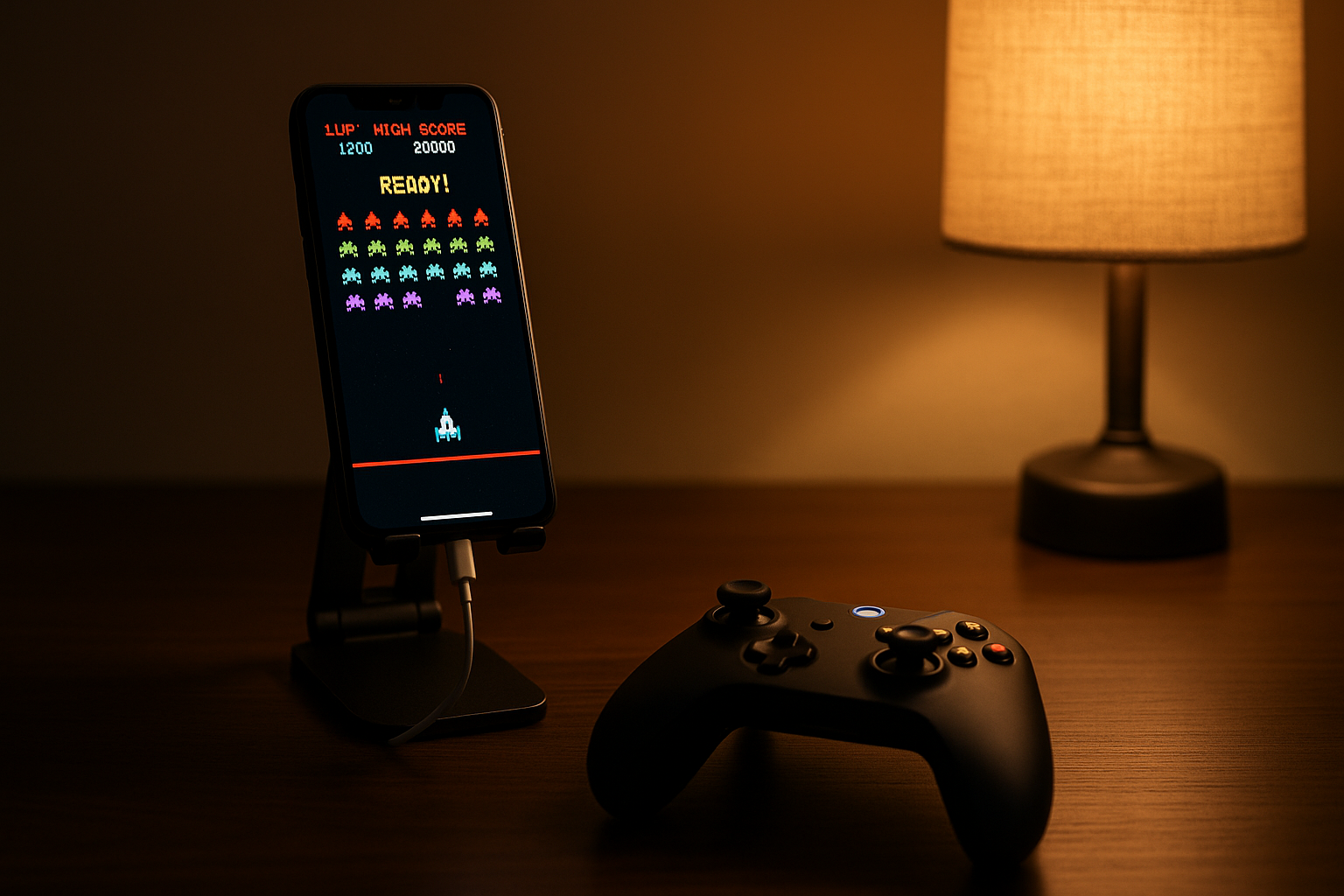
Photo by Oli Woodman on Unsplash
How to Play Premium iPhone Games With a Bluetooth Controller
Playing premium iPhone games with a Bluetooth controller transforms the experience from touchscreen taps to tactile, responsive button-and-stick input. If you own an MFi-certified (Made for iPhone) controller and a compatible game, you’re five steps away from console-like gameplay on your phone. This guide walks you through pairing, setup, troubleshooting, and finding games that actually shine with a controller in hand.
What Makes a Controller “MFi-Certified”
Not every Bluetooth gamepad works with iPhone. Apple maintains a strict MFi (Made for iPhone) certification program that ensures controllers meet latency, button-mapping, and reliability standards. An MFi controller carries the certification badge on its packaging and product page.
MFi controllers fall into two physical categories:
- Standalone controllers — designed to pair wirelessly with your iPhone, usually held in both hands like a traditional game console pad.
- Clip-mount controllers — feature a built-in clamp that holds your iPhone between two halves of the controller, turning the whole assembly into a handheld gaming device.
Both work equally well for games that support controller input. The choice depends on whether you prefer holding your phone separately (standalone) or as part of the controller grip (clip-mount). Clip-mount designs like the Razer Kishi eliminate the need for a separate stand, which matters if you’re gaming on a plane or in a car.
Pairing Your Controller: Step-by-Step
Step 1: Charge or power on your controller. Most MFi controllers ship with a USB-C or Lightning charge port. Plug in and wait for a full charge. Some older models use AA batteries; check your manual. Once powered, look for a Bluetooth pairing button — usually a dedicated button or a hold-and-release sequence on the home button.
Step 2: Open Settings on your iPhone. Navigate to Settings > Bluetooth and toggle Bluetooth on. You’ll see a list of nearby Bluetooth devices.
Step 3: Put your controller into pairing mode. This varies by model. Common patterns: - Press and hold the home button for 3–5 seconds until an LED blinks or changes color. - Press a dedicated “Pair” button on the back or side. - Consult your controller’s manual if you’re unsure.
Step 4: Select the controller from the Bluetooth list. Once your controller appears in the Bluetooth device list on your iPhone, tap it. The pairing process takes 5–10 seconds. You’ll see “Connected” next to the controller name once it’s done.
Step 5: Test in a game. Launch a game that supports controller input (see below). The game should recognize the controller automatically. If not, restart the app and try again.
Checking if Your Game Supports Controller Input
Not every iPhone game supports external controllers — many rely on touchscreen-only mechanics. To confirm a game works with a controller before buying:
On the App Store: 1. Open the game’s App Store page. 2. Scroll to the “Information” section. 3. Look for a line that says “Supports MFi controllers” or “Gamepad support.”
If that line doesn’t appear, the game likely doesn’t support controller input, even if it’s otherwise excellent.
Inside the game: Launch the app and look for a Settings or Controls menu. If controller mapping options appear, the game supports external input. Some games auto-detect a connected controller and switch the UI automatically.
Community confirmation: Search r/iosgaming on Reddit or check TouchArcade’s forums for player reports on specific titles and verified controller-compatible game lists.
Common Setup Issues and Fixes
Controller pairs but game doesn’t recognize it: - Quit the game completely (swipe up from the app switcher) and relaunch. - Toggle Bluetooth off and back on in Settings. - Unpair the controller (tap the “i” icon next to its name in Bluetooth settings, then “Forget This Device”), then re-pair.
Buttons don’t respond or feel laggy: - Move closer to your iPhone. Bluetooth range is typically 30 feet, but obstacles (walls, metal) reduce it. - Check for interference from other Bluetooth devices (wireless headphones, smartwatches). Turn them off temporarily to test. - Update your controller’s firmware if the manufacturer offers a companion app (many modern controllers do).
Controller keeps disconnecting: - Fully charge the controller. - In Bluetooth settings, toggle “Connect to This iPhone” off, wait 10 seconds, then toggle it back on. - If the problem persists, the controller’s battery or Bluetooth module may be failing — consider a replacement.
Game prompts for touch input even with controller connected: - Some games let you switch between control modes in Settings. Check the game’s options menu. - A few games are designed for touchscreen only; they won’t support controller input no matter what. Read the App Store page carefully before purchasing.
Controller Features That Matter for Gaming
Analog sticks and D-pad: All MFi controllers include both. Arcade-action games typically favor the D-pad for precision, while space-simulation and racing games benefit from analog stick sensitivity.
Trigger buttons: L2/R2 triggers (the shoulder buttons on the back) are essential for action games. Budget controllers sometimes skimp on trigger travel or feedback; premium controllers offer deeper, more responsive triggers that reward careful aim or throttle control.
Haptic feedback: Newer controllers (particularly premium models) include haptic motors that vibrate in response to in-game events — collisions, explosions, weapon fire. This adds tactile immersion but drains battery faster. You can usually toggle haptics in a game’s settings if you want to preserve battery life.
Button mapping customization: Some games let you remap buttons to suit your preference. This depends on the game’s implementation; check the game’s Settings menu to see if remapping is available.
Gaming Scenarios Where a Controller Shines
A controller transforms specific game genres:
Arcade-action games benefit most from a controller. Precise D-pad input and responsive buttons make dodging and firing feel snappy, mimicking the arcade-cabinet experience. Titles like Pac-Man Party Royale and Space Invaders Infinity Gene are designed around this input style.
Space and sci-fi games often use analog sticks for rotation and thrust, replicating the feel of classic arcade sims like Lunar Lander. Touchscreen approximations feel clumsy by comparison. Games like Asteroids: Recharged showcase this advantage.
Racing games with steering wheels or analog acceleration benefit from a controller’s precise analog input. Touchscreen tilt steering is rarely as responsive. Grid Autosport and Real Racing 3 are optimized for controller play.
Roguelikes and dungeon crawlers with grid-based movement or real-time combat feel more deliberate and less frantic with a D-pad. Games like Hades and Vampire Survivors play better with button input.
Story-driven games sometimes support controller input for menu navigation and cutscene interaction, though they don’t strictly require it.
Conversely, puzzle games, turn-based strategy, and games built around multitouch gestures often feel more natural on touchscreen. A controller is an enhancement, not a universal fix.
Wireless vs. Wired: Latency and Battery Life
Wireless (Bluetooth): Modern MFi controllers use low-latency Bluetooth profiles that deliver input to your iPhone with negligible delay (typically under 50ms per Apple’s MFi specification). For most games, this is imperceptible. Battery life ranges from 10 to 40 hours depending on the model and whether haptics are enabled.
Wired (Lightning or USB-C clamp): Clip-mount controllers like the Razer Kishi connect via the charging port, eliminating Bluetooth latency entirely and removing battery concerns. The tradeoff: you can’t charge your iPhone while gaming without a powered hub.
For casual gaming, wireless is convenient. For competitive or reflex-heavy arcade games, wired clip-mounts offer a small latency advantage.
FAQ
Q: Why does my controller work in one game but not another? Not all games support MFi controller input. Check the App Store page for “Supports MFi controllers” in the Information section. Some games are touchscreen-only by design. You can also check the game’s Settings menu — if no controller options appear, the game doesn’t support external input.
Q: How do I know if my controller is MFi-certified before buying? Look for the MFi badge on the product packaging or the manufacturer’s website. Apple maintains a searchable list of certified controllers at support.apple.com. If the product page doesn’t explicitly mention MFi certification, it likely isn’t certified, and compatibility with iPhone games is not guaranteed.
Q: Can I use a PlayStation or Xbox controller with my iPhone? Not officially. Sony and Microsoft controllers don’t carry MFi certification. iOS doesn’t recognize them natively. Some workarounds exist (jailbreaking, third-party apps with limited functionality), but they’re unreliable. Stick with MFi-certified controllers for a seamless experience.
Q: Will a controller drain my iPhone battery faster? Slightly. Bluetooth uses more power than touchscreen input, but the difference is modest — expect your iPhone to drain 5–10% faster during extended gaming sessions. Clip-mount wired controllers avoid this entirely since they don’t use Bluetooth.
Q: Can I use one controller with multiple iPhones? Yes. Most controllers pair with multiple devices. To switch, go to Bluetooth settings on the new device and select the controller. The pairing process is instant if the controller has already been paired before.
Wrapping Up
A Bluetooth controller unlocks a different way to play premium iPhone games — one that feels closer to console gaming than touchscreen tapping ever will. The setup is straightforward, the pairing is reliable, and the game library supporting controllers keeps growing. If you’ve been curious about controller gaming on iPhone, the barrier to entry is low: a budget-tier MFi controller costs less than a single premium game, and the payoff in immersion is immediate.
Start with a game you already own or a title known to shine with a controller. Pair your device, launch the game, and notice how much tighter the control feels. Once you’ve experienced responsive button input instead of glass-screen swipes, you’ll understand why arcade-game purists prefer it.